How to Unlock the Huawei E220 HSDPA modem

The Huawei E220 (or Vodafone E220) is the HSDPA modem you usually get from Dialog Telecom or Mobitel GSM (and maybe Airtel) when you sign up for mobile broadband. Thing is, it’s usually operator-locked, so you’re stuck with one network, even when your ISP starts treating you like dirt. If you caught my last post, you know why I decided to unlock my Huawei E220 from Dialog Telecom. Here, I’ll walk you through how I did it, keeping it as simple as possible. Feel free to hit me up if you need any help.

e220

Disclaimer: I’m not responsible or liable for anything you do with this tutorial. Use it at your own risk.

Alright, with the usual “Disclaimer” out of the way, here’s what you need to do.

First, grab these tools: E220 CardLock Unlocker E220 Updater version 11.117.09.04.00 QC Mobile Analysis Tool And a hex editor, though if you do it right, a basic text editor might work too 😉

Or just download and unzip this file. It’s got everything you need, including a lightweight portable hex editor 🙂

Unlocking the E220 is as easy as running the E220 CardLock Unlock tool, punching in the unlock code, and hitting “OK.” But that’s only if you already *know* the unlock code.

unlock

So how do you figure out the unlock code? That’s where the other tools come in.

Plug your modem into your computer and run the E220 Updater. Wait for it to detect your modem, then hit the “Cancel” button. Yep, cancel it! This just preps things for the real tool to spot the modem easier.

e220UpdateNow open the QC BQS Analyzer, click the Hardware Forensics menu, and pick Use Com/USB Port. QCMob-1Now the “QC Com Diag” window should pop up. Usually, your modem and COM port are auto-selected in the Serial Com Port dropdown. If not, pick it yourself. Then hit the “Send Cmd” button and wait until “Successfully sent command” shows up in the bottom right. QCMob-2 Now select “Read EFS” from the Diag Functions dropdown and click the “Let’s go” button. When prompted, name the file e220.bin and save it. You should see a “Successfully read EFS” message. QCMob-3 Time for some hex digging 🙂 Open the e220.bin file in your hex editor. Search for the ASCII string Sd, (yep, with the comma) or the hex string 53 64 2c. After some random characters, you’ll spot a clean 8-digit code. Trust me, it stands out, and guess what? That’s your unlock code 😀 HexOnce you’ve got the unlock code, just pop it into the CardLock Unlock tool, click “OK,” and boom! your modem’s unlocked!! 😀
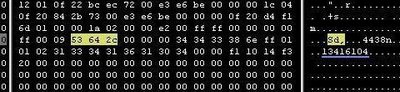
Hope this helps! I’d love to hear what you think. Good luck unlocking your modems 🙂 ~SeeJay

Why I unlocked my HSDPA modem (and why you should too)

As usual, it’s old news to my Twitter followers that I’ve unlocked my Huawei E220 HSDPA modem, which I got with my mobile broadband from Dialog Telecom. It was operator-locked, meaning it only worked with Dialog. I’ve got to say, I loved mobile broadband. The idea of having internet wherever I went was awesome. But Dialog’s been doing everything they can to mess that up. When I signed up, they promised 3.6Mbps, but I’ve never seen anything above 1Mbps. And sometimes their DNS servers crap out, making the connection totally useless.

“They’ll get their act together eventually, and we’ll see decent speeds someday,” I told myself. Man, was I wrong.

A few weeks ago, I noticed Dialog quietly “updated” the mobile broadband speed to 1Mbps on their website. Hold up! What about the connection I bought? What happened to the “super-duper fast” (yeah, I know, hilarious, but that’s how they sold it :P) internet that was supposed to hit 3.6Mbps???
My first thought was, “WTF! Who do they think we are? How do they think they’ll get away with this???” The answer’s simple. They knew they couldn’t deliver 3.6Mbps from the start, but they lied. Why? Because they’re the mighty Dialog Telecom, and we’re just helpless customers in their eyes.

“They’ve already paid, so why care? They can’t switch providers since it’s locked,” – that’s probably what Dialog’s big shots are thinking.
Well, Dialog, I’ve got news for you: anything that can be locked can be unlocked! at least with this HSDPA modem you sold us 😛 And that’s exactly what I did. Now I’ve got a fully functional Huawei E220 HSDPA modem 😀

Unlocking it was pretty straightforward, and no, I didn’t shell out cash to some company to do it 😛 I handled it myself after some solid Googling (shoutout to OpenDNS! Web browsing is a nightmare with Dialog’s junk DNS servers. If you’re still using them, switch to http://opendns.com you’ll thank me later :P).

The first question I got on Twitter was, “Are you switching to Airtel now?” My answer? “Nope!”

I’m not ditching Dialog just yet. Why not? Because I signed up for six months, and I’ll stick to that deal. So why unlock it then? Easy! after six months, I’m free to do whatever, but they’re banking on me being stuck with their modem and not switching. They don’t care. Now that I can hop between networks with this same modem, they know I might, and that’s what keeps greedy companies like Dialog from screwing us over. It’s why we should all do it! Teach them to respect their customers.

There are tons of guides out there for unlocking HSDPA modems. My next post, which I’ll write tomorrow morning, will be a step-by-step on unlocking the Huawei E220, the most common HSDPA modem in Sri Lanka. Most of my friends have this one, so chances are you do too. Let me know if you’ve got a different model, I’m always happy to help.

Don’t get it wrong, I’m not some Airtel shill or out to take down Dialog Telecom (LOL!). This isn’t just about Dialog either, it applies to Mobitel, Airtel or whoever there is! My point is, we customers deserve the freedom to pick a network that actually delivers decent service. If they won’t give it to us, we’ve got to push back! I just took the first swing.
~SeeJay

Increase your Internet connection speed in Windows XP

OK, this isn’t my usual style 🙂 Writing tips for Windo$ users, but I found this trick and thought my Windo$ friends might find it useful 🙂 Yes, I do know a few creatures who’ll never have the guts to switch to Linux 😛

By the way, your internet connection will be much faster than before because you’ll get the 20% of bandwidth that Windows XP reserved for itself. Yep, you heard right 😛

read more | digg story

Did you know these basic Firefox Tips?

You May know those BIG things But Did you know these?You can easily double the joy of using Firefox by knowing these essencial Firefox tips. Feel free to comment your Ff tips!-SeeJay

1. To quickly find any word in a web page type /word it will highlight the word and press Ctrl+G to “Find Again” that word again
2. If you wish to remove an item from your Address Bar Drop down menu,
Highlight it without clicking and use Shift+Delete.
3. Clear your Download history to make the download manager more
responsive : Tools | Options | Privacy
4. Type about:cache?device=disk in your address bar to view/save items
that you have in your firefox disk cache
5. Type about:cache?device=memory in your address bar to view/save items
that you have in your Firefox memory cache
6. Drag any link to the Download Manager Window to add & download the
link.
7. If you accidentally delete a bookmark and want to recover it, open the
“Bookmarks Manager” and use Ctrl+Z,
or Edit | Undo.
8. Double Clicking empty space on the Tab Bar will open a ‘New Tab’
9. Holding down the Ctrl key when you right click
to “View Image” or “View Background Image” will open the image in a New
Tab or New Window.
10. A bookmarks Folder’s position can also be Dragged & Dropped but you must hold down
the SHIFT key while Dragging.
11. To prevent a website from replacing/changing your rightclick context
menu go to Tools > Options > Web Features then click the “advanced
tab” and de-select “remove or replace context menus”.
12. You can work offline in Firefox just go to File > Work Offline. This
means that you can browse your previously visited pages even when
you’re offline this is a really cool feature but not many people who use it.
13. You can bookmark the current page by dragging the icon from the
location bar to your Bookmarks folder. You can also drag it to the
desktop to make an icon for that page.
14. To stop animated gifs from moving, press the ESC key.


read more | digg story

Top 10 Firefox Chrome URL Tricks

Hi guys (and gals)!

Firefox’s user interface is built with XUL and JavaScript, so you can pop a chrome URL into the address bar to open up all sorts of tools and Easter eggs. Today, CC.org is sharing the coolest Firefox chrome URLs. Feel free to try them out if you’re using Firefox. Sorry, IE fans, you’ll need to grab Firefox for this one! Read more

SeeJay

read more | digg story

FirefoX RoX! here are some haX Part 1

Hi!

Remember how some folks complained that there’s no point in opening Firefox inside Firefox? 👿 Well, here’s a useful trick for you! 😀

You know what happens when you type a “word” into the Firefox address bar, right? Yep, it triggers a Google search for that “word.” For example, if you type “wordpress” in the address bar and hit Enter, Firefox will run a Google search for “wordpress.”

But what if you actually want to visit wordpress.com or wordpress.org? Here’s the trick!

First, open a new tab in Firefox by pressing Ctrl+T. Type “ANYTHING” in the address bar, then press Ctrl+Enter. It’ll automatically add http:// and .com taking you to http://www.ANYTHING.com.

If you press Shift+Enter, it’ll go to http://www.ANYTHING.net. And if you hit Ctrl+Shift+Enter, it’ll add http:// and .org, sending you to http://www.ANYTHING.org.

How cool is that? 😕 Okay, maybe not that cool, but I’m sure it’s handy!

C.J.

powered by performancing firefox

Forbidden side of a web site-See what web sites hide from you

Hi!

It seems my previous Firefox trick (or hack) has gotten a bit famous, hasn’t it? Anyway, here’s another hack! man… am I turning into a life hacker or what? 🙄 This one’s a really curious thing to check out.

We all know what search engines do, right? Yes, search! Baby, search! They scour everywhere for everything. And what do website owners do? They use all sorts of SEO (search engine optimization) tricks to make things easier for search engines, so the SEs can crawl the directories inside their sites smoothly and bring more traffic! Hm… Okay, C.J., enough with the technical stuff! why are you telling us all this? Here’s why…

Did you know there are some directories on websites that owners don’t want the general public to see? Yep, there are! So, what do they do to hide them from us? They don’t exactly bribe the search engines 😀 nah! what they do is add a text file listing the directory names that should be skipped during searches. Search engines read that file first and leave those bits out of the search results page…

But you know us geeks can’t stay out of trouble, right? Yep! There’s a way to peek at those hidden directories! All you have to do is tack on /robots.txt after the domain name and see what the site owners don’t want you to find 😈

How about checking out what Mr. Bill Gates is hiding from us? 😀 Here you go:

http://www.microsoft.com/robots.txt

And what about Larry and Sergei? Yep!

http://www.google.com/robots.txt

Oh, and guys (and gals), you’d better not try this with WordPress.com, or our good old buddy Matt might kick me out of WP 8O. He’s a pretty open guy and probably doesn’t have much to hide :D, but why risk it? 😆

C.J.

Disclaimer: This is totally for educational purposes, and I’m not responsible for any trouble you get into with this!

powered by performancing firefox

Firefox Inside Firefox

Hellow Fellows!
You know that many of us spend lot of our computing time on the internet and most of that time we use Firefox tabs to open all our favorite sites and services inside Firefox right?, yes, Gmail inside Ff, Yahoo inside Ff, ebay inside Ff, Banking inside Ff ect. ect. ect… With all these favorites inside Firefox, How about opening Firefox inside Firefox? Not bad ha? and its really easy too! just type in this url in a new tab in Firefox and there you go! Firefox inside Firefox!

chrome://browser/content/browser.xul

Disclaimer: I guarantee that this will work with Firefox. But I have no responsibility of any damage that cause Internet Explorer users by Using this with IE to Open Firefox inside IE 😆
C.J.

update: feel free to visit my new blog http://seejay.net for more Firefox tricks!