about:sleep (or lack thereof)

wp-1472924260023.jpg
I’m kinda embarrassed to admit this, but this is the best time I’ve managed to track so far.

One of the most useful things for me with the Xiaomi Mi Band is the sleep tracker. I check my sleep data pretty much every morning, and it helps me figure out if I got enough rest the night before and what to do if when I haven’t.

I’ve known for a long time that I usually don’t get enough sleep at night, and I’m not exactly proud of it. I find it way easier to focus at night because it’s so peaceful and calm. While some of you “early to bed, early to rise” folks might not get this, I’m sure the night owls out there totally do.

But whatever your sleep style is, we can all agree on one thing: not getting enough sleep comes with some serious health risks. Seriously, Google it right now! You’ll find tons of research showing how bad sleep deprivation can be. I was gonna link some articles I’ve read about this before, but googling them flooded me with a bunch more. I skimmed a couple, and it freaked me out so much that instead of finishing this post last night around midnight, I went straight to bed!

Anyway, I’ve been tracking my sleep for a few weeks now, and I know I need to step it up. Don’t get me wrong, I always knew I wasn’t getting enough sleep, I just didn’t have the hard numbers… or maybe I was too lazy to actually track it. That’s why the Mi Band’s so helpful, it does all the work for me. Now I know I usually get between 3 to 5 hours a night, around 3 if I stay up too late, and just over 5 if I hit the sack a bit “early.”

Now that I’ve got a clear picture of how much sleep I’m getting and what I need to fix, it’s one less thing to stress about. And honestly, if you saw my numbers, you’d see I don’t have that much to tweak. Since I work from home all the time, I can sleep whenever I want and wake up whenever I feel like it. Some of you who have to get up early to commute might think it’s tougher for you to fix your sleep, trust me, it’s not! I’d argue it’s actually harder for me ‘cause I don’t have that nudge to stick to a set schedule. I end up staying up too late and, for some weird reason, waking up earlier than I should.

My point? Whether you can pick your wake-up time or not, there’s almost always a way to carve out enough sleep (and if there isn’t, you need to rethink what you’re doing, because you’re probably better off alive). I’ve been slacking on this for way too long, but I’m set on changing that now.

So how do we pull this off? Easy! track your daily sleep habits and adjust accordingly. Sort out your schedule ‘til you’re getting at least 6 hours (maybe 7, depending on how you feel). I totally recommend grabbing a sleep tracker. Because it’s been a game-changer for me. I tried some Android apps a while back, but they didn’t cut it. I don’t like keeping my phone that close to me in bed, and I’m not even sure how accurate they are. So, get a real sleep tracker (I mean, $20+ for a shot at better health is a steal =) ).

Once you know how much sleep you’re getting (or how little, if you’re like me), figure out how much more you need for a healthy amount and set up a schedule.

And most importantly, stick to that sleep schedule like your life depends on it. ‘cause it probably does!

~SeeJay

Messenger app only working on WiFi?

I’m a huge fan of the Telegram Messenger. I’ve been using it for a couple of months now and it’s nothing short of amazing. I have it installed in almost every device I use. I kept trying to get Randy and Chanux to switch to using it and even managed to finally get Chanux to set it up on his android but I don’t see him using it much. Randy kept disappointing me as he usually does these days and simply refused to try it (he also refused to watch Star Wars, so yes, my dear Internet, I think we can safely give up on the guy now).

Never_seen_Star_Wars

Anyways I didn’t really write this blog post only to talk about Randy and his awful tastes. About a week ago I noticed that Telegram stopped working in the background while on mobile data and only started working while I’m connected to WiFi. This was really annoying because more than a couple of times I missed all my messages while on the road only to realize that Telegram was offline during my travels. When I get back on WiFi Telegram would notify me about all the messages that I didn’t receive during the day.

This obviously looked like a problem with my data settings that would restrict Telegram from using any mobile data and to my surprise it was all set to normal. Then I thought it was a restriction from the Power saving mode in android and that was also not the case.

A quick search on google led me to a bunch of forums that showed this is not just a problem with Telegram but also happens to be a problem common to a lot of apps that uses background data. And none of them seem to have solved the issue.

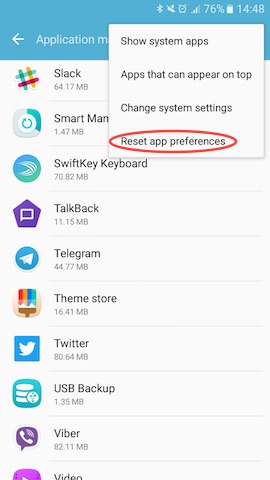
I kept looking through the threads and found one suggestion that finally worked for me. It was to reset all app preferences in android. This looked crazy at first but after trying everything I gave up and just did it, and guess what! Telegram now works well on mobile broadband.

So if your messenger app is not working and nothing else works you can do the following:

Go to Settings -> Applications -> Applications manager

Select Reset app preferences from the “MORE” menu and you’re done.

reset_app_preferences_android

Be warned though. This would reset the preferences for all the apps in your android phone. So only do this if nothing else works for you.

This trick should also fix apps like Slack, Snapchat, Viber or any other app not working on mobile data.

~SeeJay

Using Huawei E220 HSDPA modem in GNU/Linux

If you’ve been following me on Twitter, you already know I got a mobile broadband connection. If not, that’s a solid reason to follow me on Twitter. Anyway! The modem I got is a Huawei E220, and I’m stoked to say it works flawlessly on GNU/Linux. I meant to write a blog post about it earlier, but I’ve been tied up with some projects alongside our local KDE dev, Siraj 🙂 (nothing KDE-related, though).

A few days ago, I came across a blog where the owner wrote about switching to GNU/Linux. One of his worries was getting his Huawei E220 to work on Linux. Sure, it’s a breeze, but I’d hate for a new Linux user to ditch it over a little hiccup with their 3G modem 😛 I left a comment on his blog, and by the time I was done, I’d basically written a full post on how to set it up. So, I figured I’d polish it up and share it here to help anyone else struggling with 3G on Linux. Here’s my mini tutorial – tweaked a bit to fit nicely.

*******************************

The E220 works perfectly with wvdial on Ubuntu Hardy Heron.
Here’s how to do it…
(1) Plug in the modem and run
sudo wvdialconf
(2) Then edit the wvdial.conf file…
sudo vim /etc/wvdial.conf Uncomment the Username and Password lines in wvdial.conf and add this to the end: “stupid mode = yes
(3) Save the wvdial.conf file
(4) Run wvdial to connect 🙂

If you’re on Ubuntu 8.10, the Graphical Network Manager picks up the modem and hooks you up in seconds.

I usually use kppp on my Slackware setup, and it works great too. I like kppp better than wvdial since it even tracks the modem’s data usage.

*******************************
That’s it, folks! If you need help, I’m just a blog comment away!.. or hit me up with an @message on Twitter. Yep, I’m the seejay over there.

~SeeJay

Get Atheros 5007eg working under GNU/Linux

The Wi-Fi card in my new ASUS laptop is an Atheros 5007EG, and unlike Intel’s Wi-Fi cards, it doesn’t seem to work “out of the box” with any Linux distros 😦 You’d think MadWifi tools would fix it, right? That’s what I assumed too, until I tried it. I found tons of success stories online about MadWifi working with Atheros 5006 cards, but the 5007EG is pretty new and doesn’t seem to play nice with MadWifi yet.
After typing sudo iwconfig in the Terminal, here’s what I got…

lo no wireless extensions.

eth0 no wireless extensions.

So, I decided to try another route; using the Windows driver with “ndiswrapper.” After a few hours of tinkering ;), I got the Wi-Fi up and running 😀 The first thing that hit me was, “I’ve got to blog this so no one else wastes time figuring out how to get Atheros 5007 working on Linux!” 🙂

Here’s how I got the Atheros 5007EG working on Ubuntu. I’m also planning to write up a post for Slackware once I get some free time to test it out 😀 Alright, here’s what I did.

First, go to System >> Administration >> Restricted Drivers Manager, disable HAL, and then reboot.

Next, install ndiswrapper from Synaptic. You’ll need these three packages:
ndisgtk
ndiswrapper-common
ndiswrapper-utils-1.9

Once ndiswrapper is installed, you’ll need the Windows driver for your Wi-Fi card. I had the Atheros 5007EG driver on a DVD that came with my laptop, but if you don’t have it, you can grab the right one from the Atheros website at http://www.atheros.cz/.

Open the Terminal, navigate to the folder with your Windows driver (the .inf file) for your Atheros card, and type:
ndiswrapper -i xxx.inf (replace “xxx” with the name of your .inf file).

Now, blacklist ath_pci. Type gksu gedit /etc/modprobe.d/blacklist in the Terminal.

Add this line to the end of the file:

blacklist ath_pci

Then type ndiswrapper -l to list the installed drivers. If it’s working, you should see something like this:

net5211 : driver installed
device (168C:001C) present (alternate driver: ath_pci)

Run these commands in the Terminal, one after the other:

sudo depmod -a

sudo modprobe ndiswrapper

sudo ndiswrapper -m

Then type gksudo gedit /etc/modules, add ndiswrapper to the end of the file, and save it.

That’s it, folks! 😀 Reboot your machine, and you can check if the Wi-Fi’s working (spoiler: it is!) by typing sudo iwconfig in the Terminal. Here’s what I got after the process:

lo no wireless extensions.

eth0 no wireless extensions.

ath0 IEEE 802.11g ESSID:off/any
Mode:Managed Frequency:2.412 GHz Access Point: Not-Associated
Bit Rate:54 Mb/s
Encryption key:off
Power Management:off
Link Quality:0 Signal level:0 Noise level:0
Rx invalid nwid:0 Rx invalid crypt:0 Rx invalid frag:0
Tx excessive retries:0 Invalid misc:0 Missed beacon:0

Alright, have fun! Feel free to let me know if you run into any issues or if anything in this post isn’t clear.
~SeeJay

Increase your Internet connection speed in Windows XP

OK, this isn’t my usual style 🙂 Writing tips for Windo$ users, but I found this trick and thought my Windo$ friends might find it useful 🙂 Yes, I do know a few creatures who’ll never have the guts to switch to Linux 😛

By the way, your internet connection will be much faster than before because you’ll get the 20% of bandwidth that Windows XP reserved for itself. Yep, you heard right 😛

read more | digg story