Ctrl, Alt, Delight: I’ve Ordered Another Keyboard!

So this happened last night…

I had been drooling over this so many years ago (like back in 2015) but just gave up because it was way over my budget for a keyboard in the first place, and the horrendous shipping and import fees would only make it even worse.

I eventually forgot about it, and fast forward 7 or 8 years, here I am, playing around on the computer while watching a Lex Fridman video from some time back, and this showed up! I went and checked it out on Amazon again, and guess what? It was available! (it still comes at a cost, as is the case with all the pretty things in life…. but at least it’s available!!)

I went back on YouTube in search of some reviews on the device but came across this other short video that pretty much sealed the deal for me.

For those of you too lazy to watch the YouTube clip, it’s from a discussion Lex had with none other than Guido van Rossum, where he explains how much he likes this keyboard.

So I did the only sensible thing one could do and went ahead and ordered it.

And now we wait, I’ll post a photo here when this arrives.

Until we meet again… keep calm and type on! =)

~SeeJay


* * *

Edit: It arrived! 😍

Messenger app only working on WiFi?

I’m a huge fan of the Telegram Messenger. I’ve been using it for a couple of months now and it’s nothing short of amazing. I have it installed in almost every device I use. I kept trying to get Randy and Chanux to switch to using it and even managed to finally get Chanux to set it up on his android but I don’t see him using it much. Randy kept disappointing me as he usually does these days and simply refused to try it (he also refused to watch Star Wars, so yes, my dear Internet, I think we can safely give up on the guy now).

Never_seen_Star_Wars

Anyways I didn’t really write this blog post only to talk about Randy and his awful tastes. About a week ago I noticed that Telegram stopped working in the background while on mobile data and only started working while I’m connected to WiFi. This was really annoying because more than a couple of times I missed all my messages while on the road only to realize that Telegram was offline during my travels. When I get back on WiFi Telegram would notify me about all the messages that I didn’t receive during the day.

This obviously looked like a problem with my data settings that would restrict Telegram from using any mobile data and to my surprise it was all set to normal. Then I thought it was a restriction from the Power saving mode in android and that was also not the case.

A quick search on google led me to a bunch of forums that showed this is not just a problem with Telegram but also happens to be a problem common to a lot of apps that uses background data. And none of them seem to have solved the issue.

I kept looking through the threads and found one suggestion that finally worked for me. It was to reset all app preferences in android. This looked crazy at first but after trying everything I gave up and just did it, and guess what! Telegram now works well on mobile broadband.

So if your messenger app is not working and nothing else works you can do the following:

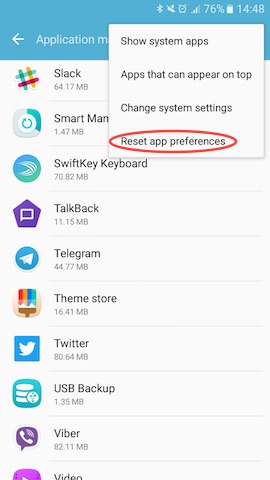
Go to Settings -> Applications -> Applications manager

Select Reset app preferences from the “MORE” menu and you’re done.

reset_app_preferences_android

Be warned though. This would reset the preferences for all the apps in your android phone. So only do this if nothing else works for you.

This trick should also fix apps like Slack, Snapchat, Viber or any other app not working on mobile data.

~SeeJay

Welcome to User Centric!

U-S-E-R(This is the post I wrote introducing UserCentric on the official blog at blog.u-s-e-r.com)

Hey all! Welcome to the first official post on the UserCentric blog! So… what’s UserCentric all about??? Glad you asked!

You know those little complaints or ideas we toss out on social networks like Twitter or Facebook about the stuff we use—only to watch them vanish into thin air? Yep, we’ve all been there! UserCentric is the spot where you can share those micro-reviews, and unlike regular social media, your user experience feedback gets neatly sorted with #Tags.

So, how’s it different from traditional product review sites? Three words: Ease of use! Most of us don’t have time to write long-winded reviews about the things we use. But we’re all posting quick takes on social media anyway—griping about product flaws or throwing out ideas for features we’d love to see. Why not gather all those micro-reviews in one place where others can actually benefit from our tips? That’s exactly why I created UserCentric.

We needed something that makes reviewing products fun and painless! That’s why I built UserCentric the way it is. Just start your review with the product name as a #tag—that’s it.

Review anything you use, one point at a time… Becoming a semi-pro product reviewer has never been this easy! 😀

Check out my reviews page on UserCentric at http://u-s-e-r.com/seejay to see how tidy UX reviews can look.

We’re in private beta right now, so if you want to snag your favorite username early, use the beta code KyXnrTz on the signup page. Just keep it hush-hush! 😉

~SeeJay

How Dropbox Won

A couple of days ago, I stumbled across something really cool that Dave Winer shared on Twitter. It was a link to the application Drew Houston, Dropbox’s founder, submitted to Y Combinator for their Summer 2007 cycle. I clicked it out of curiosity and found it super interesting and thought-provoking. Here’s the answer from the app to the question: What is your company going to make?”

“Dropbox synchronizes files across your/your team’s computers. It’s much better than uploading or email, because it’s automatic, integrated into Windows, and fits into the way you already work. There’s also a web interface, and the files are securely backed up to Amazon S3. Dropbox is kind of like taking the best elements of subversion, trac and rsync and making them ‘just work’ for the average individual or team. Hackers have access to these tools, but normal people don’t…”

Right when I read this, it hit me how clearly Drew saw his product’s future before anyone else even had a clue. He knew exactly what Dropbox was and how it’d solve the problem he was targeting. Looking at Dropbox’s success today, it’s obvious he nailed his plan. That’s a winning combo right there. I’d be shocked if a product flopped when its founder had this kind of vision. I bet Paul Graham was grinning ear to ear when he saw this one. Here’s what ran through his head when he reviewed Dropbox’s Y Combinator app that summer…

125 points by pg 452 days ago | link

What happens when I read this:

File syncing. Superset of backups, which people will pay for. Good. Single founder. Bad. But at least he’s looking for more people. Went to MIT, 1600 SAT. Probably fairly smart. Wrote a poker bot. Now I’m starting to get interested; has the right attitude. Description of the software sounds plausible but generic. Maybe it’s good, but who can tell. But little sister uses it; that’s impressive. Scroll down to what he understands that competitors don’t get. Wow: very concise and unequivocal. I’m now basically sold. Scroll through the rest. No red flags. Did not make the usual joke single founders make when asked how long the founders have known one another. Good answer to what might go wrong. A-. (Would be an A with a cofounder.)

Pretty fascinating stuff. PG definitely knows a killer idea, and a sharp mind, when he sees one.
The application’s packed with great questions like What do you understand about your business that other companies in it just don’t get?” and killer answers from Drew. It’s a must-read if you’re into startups, and I’d totally recommend answering these questions yourself for any project you’re working on.
Oh, and by the way, if you haven’t tried Dropbox yet, trust me, you’re missing out big time.
~SeeJay

How to Unlock the Huawei E220 HSDPA modem

The Huawei E220 (or Vodafone E220) is the HSDPA modem you usually get from Dialog Telecom or Mobitel GSM (and maybe Airtel) when you sign up for mobile broadband. Thing is, it’s usually operator-locked, so you’re stuck with one network, even when your ISP starts treating you like dirt. If you caught my last post, you know why I decided to unlock my Huawei E220 from Dialog Telecom. Here, I’ll walk you through how I did it, keeping it as simple as possible. Feel free to hit me up if you need any help.

e220

Disclaimer: I’m not responsible or liable for anything you do with this tutorial. Use it at your own risk.

Alright, with the usual “Disclaimer” out of the way, here’s what you need to do.

First, grab these tools: E220 CardLock Unlocker E220 Updater version 11.117.09.04.00 QC Mobile Analysis Tool And a hex editor, though if you do it right, a basic text editor might work too 😉

Or just download and unzip this file. It’s got everything you need, including a lightweight portable hex editor 🙂

Unlocking the E220 is as easy as running the E220 CardLock Unlock tool, punching in the unlock code, and hitting “OK.” But that’s only if you already *know* the unlock code.

unlock

So how do you figure out the unlock code? That’s where the other tools come in.

Plug your modem into your computer and run the E220 Updater. Wait for it to detect your modem, then hit the “Cancel” button. Yep, cancel it! This just preps things for the real tool to spot the modem easier.

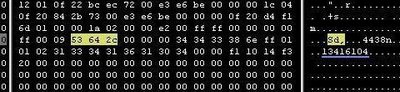
e220UpdateNow open the QC BQS Analyzer, click the Hardware Forensics menu, and pick Use Com/USB Port. QCMob-1Now the “QC Com Diag” window should pop up. Usually, your modem and COM port are auto-selected in the Serial Com Port dropdown. If not, pick it yourself. Then hit the “Send Cmd” button and wait until “Successfully sent command” shows up in the bottom right. QCMob-2 Now select “Read EFS” from the Diag Functions dropdown and click the “Let’s go” button. When prompted, name the file e220.bin and save it. You should see a “Successfully read EFS” message. QCMob-3 Time for some hex digging 🙂 Open the e220.bin file in your hex editor. Search for the ASCII string Sd, (yep, with the comma) or the hex string 53 64 2c. After some random characters, you’ll spot a clean 8-digit code. Trust me, it stands out, and guess what? That’s your unlock code 😀 HexOnce you’ve got the unlock code, just pop it into the CardLock Unlock tool, click “OK,” and boom! your modem’s unlocked!! 😀
Hope this helps! I’d love to hear what you think. Good luck unlocking your modems 🙂 ~SeeJay