The Huawei E220 (or Vodafone E220) is the HSDPA modem you usually get from Dialog Telecom or Mobitel GSM (and maybe Airtel) when you sign up for mobile broadband. Thing is, it’s usually operator-locked, so you’re stuck with one network, even when your ISP starts treating you like dirt. If you caught my last post, you know why I decided to unlock my Huawei E220 from Dialog Telecom. Here, I’ll walk you through how I did it, keeping it as simple as possible. Feel free to hit me up if you need any help.

Disclaimer: I’m not responsible or liable for anything you do with this tutorial. Use it at your own risk.
Alright, with the usual “Disclaimer” out of the way, here’s what you need to do.
First, grab these tools: E220 CardLock Unlocker E220 Updater version 11.117.09.04.00 QC Mobile Analysis Tool And a hex editor, though if you do it right, a basic text editor might work too 😉
Or just download and unzip this file. It’s got everything you need, including a lightweight portable hex editor 🙂
Unlocking the E220 is as easy as running the E220 CardLock Unlock tool, punching in the unlock code, and hitting “OK.” But that’s only if you already *know* the unlock code.

So how do you figure out the unlock code? That’s where the other tools come in.
Plug your modem into your computer and run the E220 Updater. Wait for it to detect your modem, then hit the “Cancel” button. Yep, cancel it! This just preps things for the real tool to spot the modem easier.
 Now open the QC BQS Analyzer, click the Hardware Forensics menu, and pick Use Com/USB Port.
  Now the “QC Com Diag” window should pop up. Usually, your modem and COM port are auto-selected in the Serial Com Port dropdown. If not, pick it yourself. Then hit the “Send Cmd” button and wait until “Successfully sent command” shows up in the bottom right.
  Now select “Read EFS” from the Diag Functions dropdown and click the “Let’s go” button. When prompted, name the file e220.bin and save it. You should see a “Successfully read EFS” message.
  Time for some hex digging 🙂 Open the e220.bin file in your hex editor. Search for the ASCII string Sd, (yep, with the comma) or the hex string 53 64 2c. After some random characters, you’ll spot a clean 8-digit code. Trust me, it stands out, and guess what? That’s your unlock code 😀
 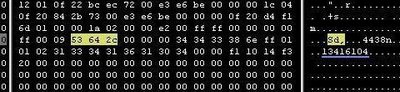 Once you’ve got the unlock code, just pop it into the CardLock Unlock tool, click “OK,” and boom! your modem’s unlocked!! 😀
Hope this helps! I’d love to hear what you think. Good luck unlocking your modems 🙂 ~SeeJay
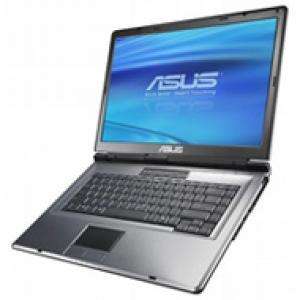 Since I’m studying for the BSc Honors in IT at SLIIT, I had no choice but to move to a boarding place near the campus. After moving, all I had was my good ol’ ThinkPad laptop, which wasn’t exactly cutting-edge anymore 😛 I had my desktop PC at home, but moving that beast to the new place was too much hassle. So, I had to stick with my IBM ThinkPad for a few weeks until I could get a new laptop. I checked local dealers for a few models and quickly realized I’m too broke to buy an IBM ThinkPad, which, in my opinion, are overpriced in Sri Lanka. Correct me if I’m wrong, but I don’t think those Lenovo ThinkPads have the same durability as the old IBM ones. Any Lenovo users out there???
 Weblog Carlito’s Contraptions shares a simple, clever alternative to the traditional noisy keychain, and all you need is three small washers and a rivet. When you finish the quick two-step project (where step two is admiring your creation), you’ll have a slim, noiseless, and elegant keychain that’s sure to feel good in
  You’ve been dying to roll up your keyboard for on-the-go use ever since you saw the Mac guy typing away next to John McClane in Live Free or Die Hard and you’ve got a spare keyboard lying around? DIY website Instructables walks you step-by-step through how to make a roll-up portable keyboard using a USB keyboard, a screwdriver, and a few stickers. The end result might not be the most durable keyboard out there, but it’s an undeniably cool project.
 Montage-a-Google, crafted by digital designer Grant Robinson, is a slick web-based tool that taps into Google’s image search to create a big, gridded montage of pictures. The images are pulled based on keywords you type in. I’m having a blast using it to randomly browse the web! Sure, screenshots grabbed with “Print Screen” might mess with your eyes as wallpaper, but nothing beats these montages as awesome posters for your room, they’ll totally blow your friends’ minds.
 SeeJay Online!